
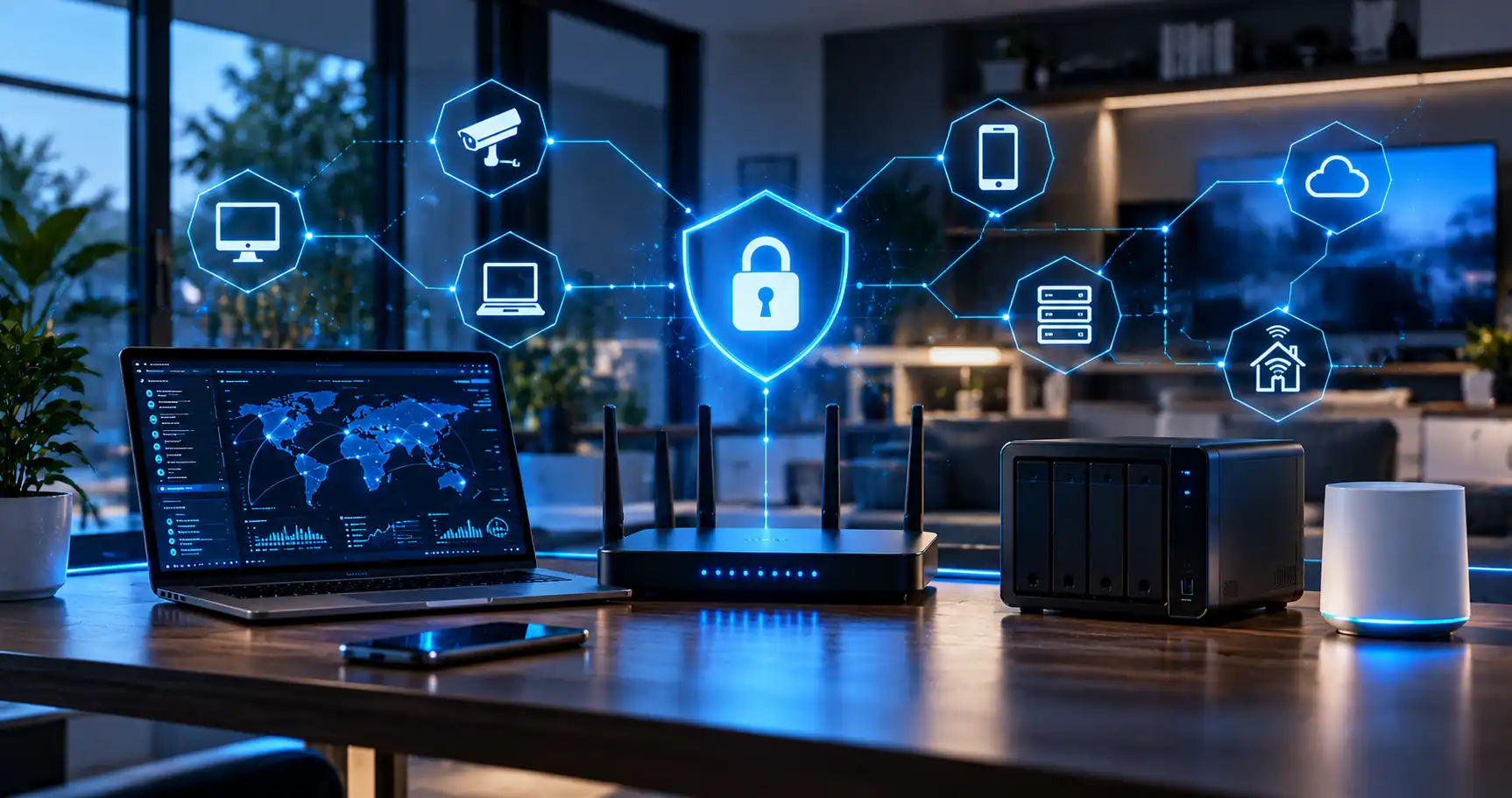
How to Harden Your Home Network
Your home network now connects far more than computers and phones. Smart TVs, cameras, doorbells, appliances, speakers, tablets and other devices may all have access to your Wi-Fi and the internet.
A few sensible changes can significantly improve the security and privacy of your home network without making it difficult to use.
Start With the BasicsYour Router is the Front Door to Your Home Network
Most homes have one router connecting everything inside the house to the internet. That makes the router one of the most important security devices you own.
Unfortunately, routers are often installed once and then forgotten. Default passwords remain unchanged, firmware becomes outdated, unnecessary features stay enabled and devices accumulate on the network over many years.
Home network hardening is simply the process of reviewing these weak points and improving the security of the router, Wi-Fi, computers, smart devices and accounts connected through it.
Ask Yourself These Questions
- When was your router last updated?
- Do you know every device connected to your Wi-Fi?
- Is your router still using a default administrator password?
- Are cameras and smart devices on the same network as your computer?
- Could you restore your important files if your computer was compromised?
Secure Your Router and Wi-Fi
The router controls the connection between your home and the internet, so this is the logical place to start.
Change Default Credentials
Change the router administrator username and password if the device still uses its factory defaults. Default router credentials may be publicly available and should not be relied upon for security.
Keep Firmware Current
Router firmware updates often fix security vulnerabilities. Enable automatic updates where supported or periodically check the manufacturer's website for updates.
Disable What You Do Not Need
Remote administration should generally be disabled unless you specifically need it. Other unnecessary remote management features and services should also be reviewed.
Use Strong Wi-Fi Security
Use WPA2 or WPA3 security with a strong, unique Wi-Fi password. Older wireless security standards should be avoided where possible.
Turn Off WPS
Wi-Fi Protected Setup was designed to make connecting devices easier, but it is rarely necessary in a modern home. If you do not use it, disable it.
Know What is on Your Network
Periodically review the router's connected device list. Every computer, phone, television, camera and smart device should be recognisable.
Your main computer does not necessarily need to share the same network environment as every television, light switch, camera and appliance in the house.
Many modern routers support guest networks, multiple wireless networks or more advanced network segmentation. These features can provide useful separation between trusted devices and devices that need internet access but do not need access to everything else.
More advanced homes can also use VLANs to create separate network zones, although these need to be configured carefully to avoid unnecessary complexity.
Main computers and personal phones
Smart home and IoT devices
Security cameras and NVRs
Guest Wi-Fi for visitors
Separate networks where practical
Pay Attention to IoT Devices
Smart home devices are convenient, but each internet-connected device adds another piece of hardware and software to your network.
Common Connected Devices
- Smart televisions
- Security cameras
- Video doorbells
- Smart speakers
- Smart plugs and switches
- Home automation controllers
- Robot vacuum cleaners
- Internet-connected appliances
Things to Check
- Change default passwords
- Install firmware updates
- Remove devices you no longer use
- Disable unnecessary remote access
- Review vendor cloud access
- Check application permissions
- Replace devices that no longer receive security updates
Reduce Unnecessary Exposure to the Internet
Most home users should not need to directly expose computers, storage devices or cameras to the internet.
Port forwarding, remote desktop and automatic port-opening technologies can be useful, but they should only be enabled when there is a genuine need and the security implications are understood.
If secure remote access is required, a properly configured VPN is often preferable to exposing individual devices directly.
Review Your Router For
- Unnecessary port forwarding
- Remote administration
- UPnP settings
- Remote desktop exposure
- NAS remote access
- Camera and NVR access
- Old rules that are no longer required
Filter Some Threats Before They Reach Your Devices
DNS is the system that converts website names into the addresses computers use to find them.
Choosing a reputable DNS provider or using a local filtering solution can help block known malicious domains and, depending on the service, advertisements and tracking services.
DNS Filtering Can Be Used For
- Blocking known malicious websites
- Reducing some tracking
- Blocking selected advertising domains
- Family filtering where required
- Local network filtering with systems such as Pi-hole
Secure the Computers Connected to Your Network
A secure router cannot compensate for an unprotected computer. Windows devices should also be kept current and sensibly configured.
Keep Windows Updated
Keep Windows, browsers and installed software updated. Automatic updates should generally be enabled.
Use Security Protection
Windows includes Microsoft Defender and Windows Firewall. Ensure security protection is active and working correctly.
Remove Unnecessary Software
Old applications, browser extensions and unused remote access software create unnecessary attack surface and should be reviewed.